
Set up your store
Add your logo and banner
Your banner is the wide picture across the top of your store, and your logo sits on it. Stores with both look more trusted, so customers are more likely to buy.
About 2 minutes · 3 steps
1
Open My Store
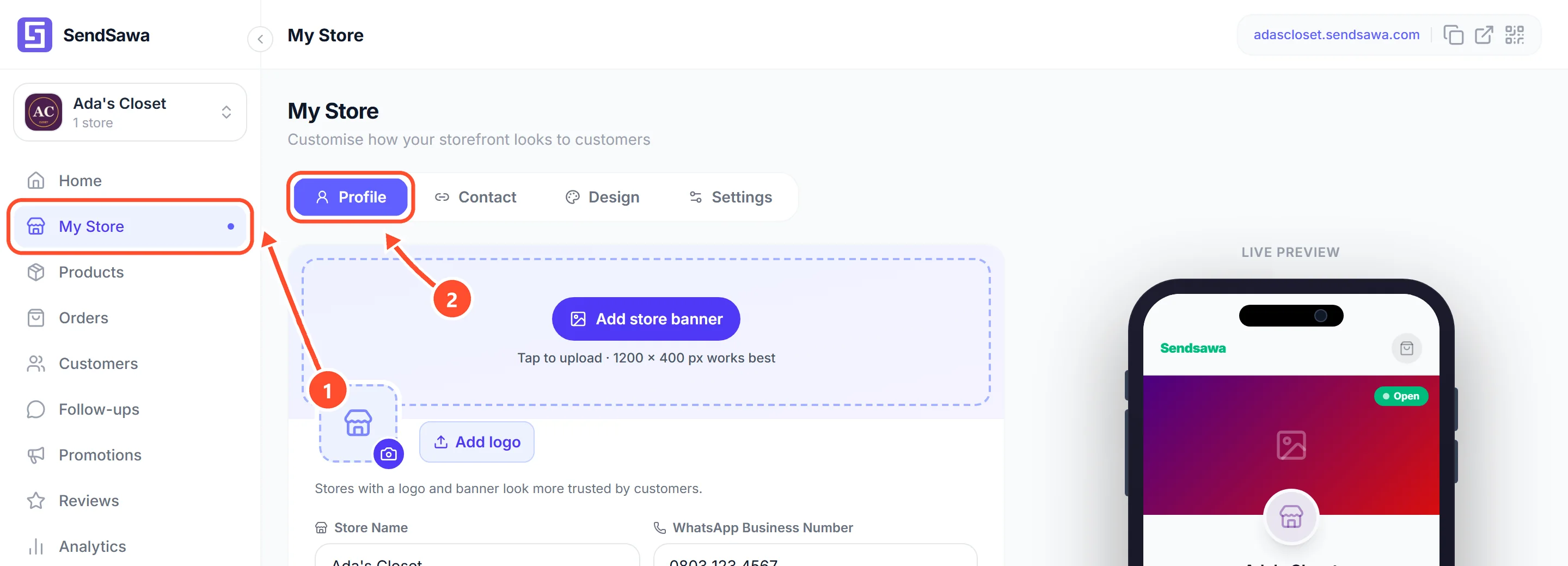
Tap My Store in the menu 1. You land on the Profile tab 2, which is where your logo and banner are.
 See bigger
2
Pick your banner and logo
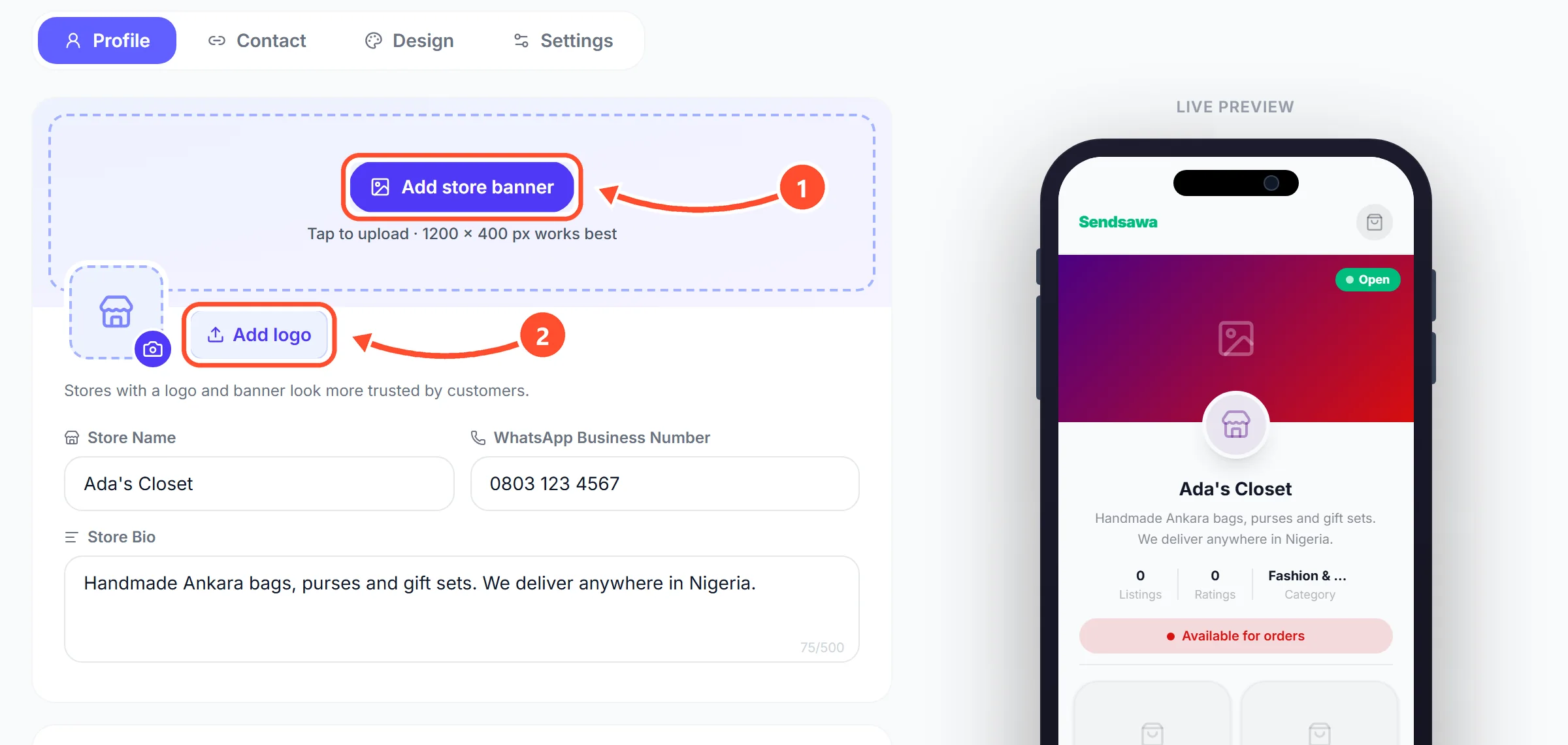
Tap Add store banner 1 and pick a wide picture. One that is 1200 by 400 pixels fits best. Then tap Add logo 2 and pick your logo. A square picture works best for the logo.
 See bigger
3
Check how it looks and save
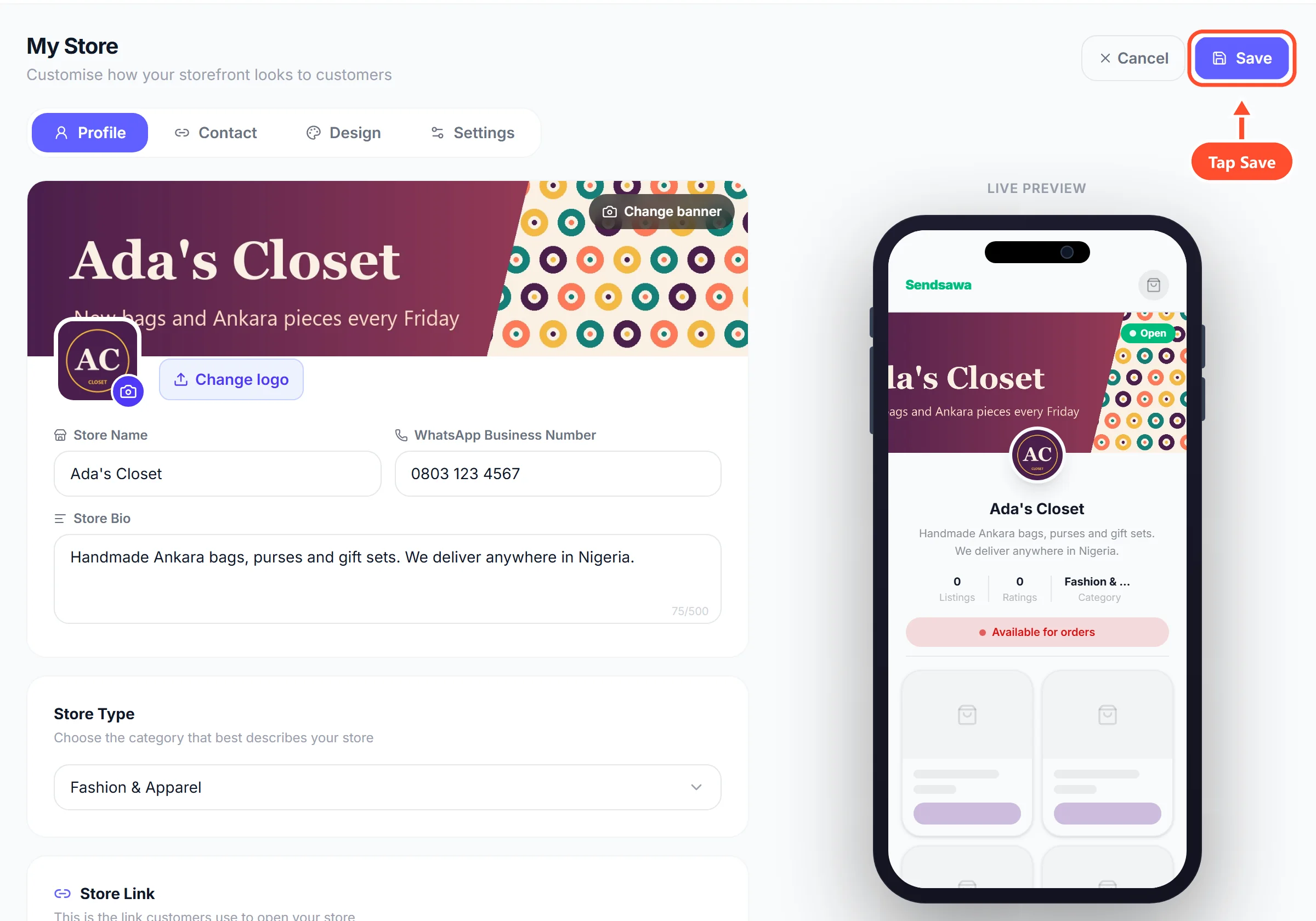
The phone on the right shows your store the way customers will see it. On a phone, tap Preview store at the bottom of the screen to see it. When you are happy, tap Save at the top. Nothing changes in your store until you save.
 See bigger